
To run POSable you need:
- an Android tablet (10 inches or larger, Android 10 or later) or a Windows till
- an internet connection, although POSable also works offline
To take card payments and give receipts, most businesses also add:
- a card terminal from myPOS, Dojo, Teya or Gravity
- a receipt printer
- a cash drawer
POSable works with affordable, widely available hardware, so you don’t need to buy an expensive proprietary POS kit.
Hardware checklist
| Hardware | Needed? | What to look for |
|---|---|---|
| Android tablet or Windows till | Essential | 10 inches or larger, landscape; Android 10 or later |
| Internet connection | Essential | Wi-Fi, mobile data or Ethernet (POSable keeps working offline) |
| Card terminal | Recommended | myPOS, Dojo, Teya or Gravity (US and Canada) |
| Receipt printer | Recommended | 80 mm thermal, USB or Bluetooth |
| Cash drawer | Recommended | RJ11/RJ12 cable to the receipt printer |
| Tablet stand or wall mount | Recommended | Fits your tablet size; VESA for wall mounting |
| Barcode scanner | Optional | USB or Bluetooth; reads screens for loyalty barcodes |
| Kitchen printer | Optional | USB or Bluetooth thermal printer for kitchen tickets |
| Label printer | Optional | For printing shelf labels from the dashboard |
| TV or spare tablet | Optional | For digital menu boards |
| Staff phones | Optional | For the Shop Floor stock app, which uses the phone’s camera to scan |
Tablets and tills
Android tablets
- Screen: 10 inches or larger. POSable adapts its layout to different screen sizes and resolutions.
- Operating system: Android 10 or later.
- Orientation: landscape.
- Themes: Dark (the default) or Light, to suit your setting.
Which size? 10 to 11-inch tablets are compact and affordable, which suits coffee carts, market stalls and small counters. Larger 13 to 14-inch tablets show more products at once, which helps busy counters with big menus.
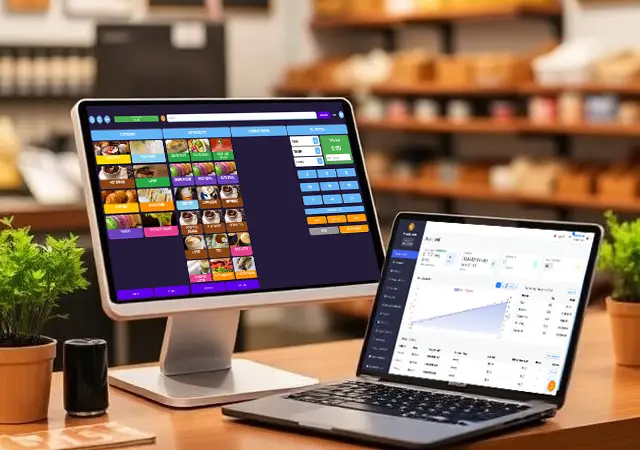
Tablets we recommend:
- TPAD 11″ – Android 16 – POSable sourced tablet available to order direct from POSable. 11″ tablet on a detachable heavy duty stand. Built in 2d Barcode/QR Code scanner with a 6000mAh battery
- Teclast 13.4″ – Android 16
- DooGee 13″ – Android 15
- CKYTab 14″ CK14 – Android 14
These are desk-stand models. For wall mounting, choose a VESA-compatible Android tablet. Affordable options are available from retailers such as AliExpress.
Windows tills
POSable also runs on Windows tills, with the same products, reports, loyalty and card terminal support as Android.
We recommend Windows 11 Surface Pro Tablets.

Card terminals
POSable integrates with four card payment providers. You use one provider at a time, chosen in API Settings → Payments.
myPOS (for example the myPOS Go 2)

- Connects to the tablet or till by USB and stays connected.
- Comes with a free data SIM card, so the terminal can authorise payments using its own connection, even when your till is offline.
- A good all-rounder for counters where the terminal stays next to the till.
Dojo

- Works through Dojo’s Pay at Counter service, so the terminal doesn’t need to be cabled to the till.
- Terminals are assigned to each tablet or till automatically from your Dojo account, one terminal per device, in App Devices.
- Supports card refunds and signature checks from the till.
- Add your Dojo API key in API Settings → Payments to get started.
Teya

- Connects to Teya card terminals using Teya’s own integration.
- Supports card payments and refunds from the till.
- Add your Teya credentials in API Settings → Payments.
Gravity Payments (United States and Canada only)
- Available for businesses in the US or Canada trading in USD or CAD.
- Assign each till its own Gravity card reader in App Devices using the reader’s full device name, for example
A920-5590. - Optional tip prompt and credit card surcharge disclosure, shown on the payment screen and printed on receipts.
Gravity Payments offers a variety of card reader such as PAX and Clover. Your Gravity Payments rep will inform you of which is going to be most suitable for your requirements.
Card terminals and offline mode: myPOS terminals authorise payments using their own SIM, so they keep working if the till’s internet drops. Dojo, Teya and Gravity need the till to be online. See Does POSable work offline?
Card terminal stands
A compact stand keeps the terminal steady and easy to reach. The 3dbitz POS stand is an affordable option for the myPOS Go 2.
Receipt and kitchen printers
- 80 mm thermal printers connected by USB or Bluetooth.
- Recommended: Munbyn printers, particularly the ITPP047P-USEB-BK, for their reliability.
- One printer or two: use one printer for receipts and kitchen tickets, or add a separate kitchen printer. You set this up in API Settings → Printer profiles. See Does POSable support kitchen printing?

Cash drawers
Choose a cash drawer with an RJ11/RJ12 cable. It plugs into the receipt printer, not the tablet, and opens automatically when a cash sale is completed.

Barcode scanners
A barcode scanner speeds up checkout for retail and is needed to scan customers’ loyalty barcodes at the till.
- Use USB or Bluetooth scanners. Bluetooth models can connect using the supplied USB dongle.
- Reading barcodes from phone screens: loyalty barcodes are shown on the customer’s phone. Standard laser scanners often can’t read screens, so choose a CCD or 2D imager scanner.
- Recommended NetumScan models: NT-1228BC, W6-X and NSL65, which all read phone screens.
- Android TPAD Devices and Windows Surface Pro Devices can also use the tablet’s camera as a barcode scanner. No extra hardware required.
Tip: staff don’t need a scanner for stock work. The Shop Floor app uses the phone’s camera.

Tablet stands and wall mounts
- Klearlook and ShouSou: durable, budget-friendly stands for tablets up to 13 inches.
- AboveTEK: sturdier, more secure stands for busy counters.
- Wall mounting: use a VESA-compatible tablet with a matching VESA mount.
Other optional hardware
- Label printer: design and print shelf labels showing the name, price and barcode from Shelf Labels in the dashboard.
- Digital menu boards: open a menu board link on any TV or tablet with a web browser to show menus, product promotions or loyalty screens.
Example setups
- Coffee cart or market stall: a 10 to 11-inch Android tablet, a myPOS Go 2 (with its own SIM for patchy signal) and a Bluetooth receipt printer.
- Independent shop: a 13-inch tablet on a stand, a USB receipt printer, a cash drawer, a NetumScan barcode scanner and a Dojo or Teya terminal.
- Café with a kitchen: a 13-inch tablet, a receipt printer at the counter, a kitchen printer, a card terminal and a TV showing a digital menu board.
- US or Canadian business: an Android tablet or Windows till, a Gravity card reader assigned in App Devices, and a receipt printer.
Frequently asked questions
Can I use a 10-inch tablet with POSable?
Yes. 10 inches is the recommended size, and POSable adapts its layout to your screen.
Which card terminals work with POSable?
myPOS, Dojo, Teya and Gravity Payments (US). You use one provider at a time.
Does POSable still support Stripe?
No. Stripe terminals such as the WisePad 3 are no longer supported. Choose myPOS, Dojo, Teya or Gravity instead.
Do I need a barcode scanner for POSable?
Only if you scan products or loyalty barcodes at the till. Choose one that can read phone screens (CCD or 2D).
How does the cash drawer connect to POSable?
With an RJ11/RJ12 cable to your receipt printer. It opens automatically for cash sales.
Can I use a Windows computer instead of a tablet?
Yes. POSable runs on Windows tills as well as Android tablets.
Can I use an iPad with POSable?
The POSable till app runs on Android and Windows only. The dashboard, Shop Floor app and loyalty app work in a browser on iPads and iPhones.
Related Guides
- Are there any transaction fees?
- Does POSable work offline?
- Kitchen printing
- Can I use my Android phone?