
Your POSable reports are in the dashboard under Advanced Reports. It’s a dropdown menu with 12 reports: Sales Reports, Accounts Reports, Employee Reports, Device Reports, Item Reports, Categories Reports, Payment Type Reports, Tips Reports, Health & Safety Reports, Age Verification Logs, Loyalty Reports and Deliveries Reports. Choose a report, pick your dates, and you can then read, export or email the results. Your end-of-day Z Report is separate: open Sales, select the date and open the day summary. This guide is for owners, managers and assistant managers who check takings, staff sales and till performance, or send figures to an accountant.
Important:
- Only managers and assistant managers can see reports.
- The Z Report is under Sales, not Advanced Reports. Open Sales, select the date and open the day summary.
- The Z Report doesn’t reset at midnight. It covers everything since the till was last closed, so close the till at the end of each trading day.
- There’s no X Report. To check takings during the day, use Advanced Reports.
- Sales reach the dashboard when the till syncs, automatically every 5 minutes. A till that’s offline sends its sales when it’s back online.
Why it matters
- Everything in one place. Sales, staff, tills, products, payments and compliance logs are all under one menu.
- See each till and each person. Device Reports break sales down by till, and Employee Reports show each staff member’s sales.
- Less work for your accountant. Export reports for any date range, or have them emailed.
- Proof for inspections. Health & Safety checks and age verification checks are logged and kept with the rest of your POSable data.
Advanced Reports at a glance
| Report | What it shows |
|---|---|
| Sales Reports | Your sales, compared with the same period last year, including tax |
| Accounts Reports | Total sales, net, VAT, cost, gross and net profit, average sale and average profit on return (POR), with every transaction listed |
| Employee Reports | Sales by staff member |
| Device Reports | Sales by till. This is where you filter by till |
| Item Reports | Sales by product |
| Categories Reports | Sales by category |
| Payment Type Reports | Revenue, share of revenue and refunds for each payment method |
| Tips Reports | Tips taken with card payments (Gravity Payments, US) |
| Health & Safety Reports | Health & Safety checks completed by staff in the Shop Floor app |
| Age Verification Logs | Every age check on the till, by device: passed or failed, and approvals |
| Loyalty Reports | Loyalty activity, top customers, offer performance and the impact of loyalty discounts |
| Deliveries Reports | Deliveries recorded in POSable |
| AI.MEE REPORTS (AI plans) | AI analysis of your business. See How to use AI.MEE reports |
Note: The Z Report isn’t in Advanced Reports. It’s under Sales. See The Z Report and closing the till below.
Step-by-step: run a report
1. Log in to the dashboard
Go to https://dashboard.posable.co.uk, or click Login on posable.co.uk, and sign in with a manager or assistant manager account.
2. Open Advanced Reports
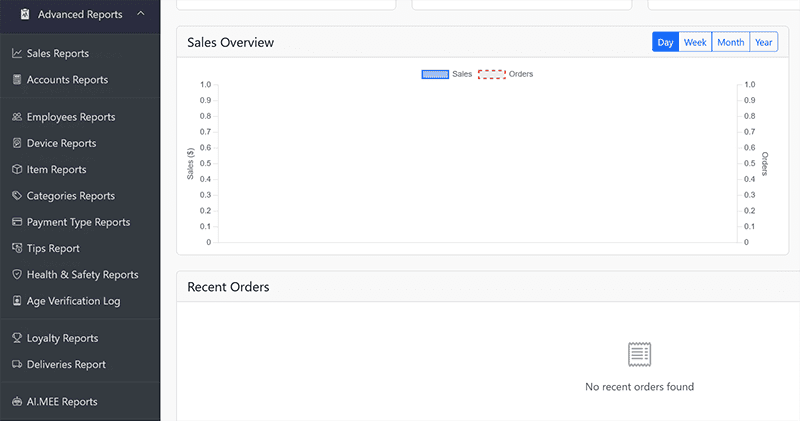
Click Advanced Reports in the menu. The dropdown lists every report.
3. Choose the report
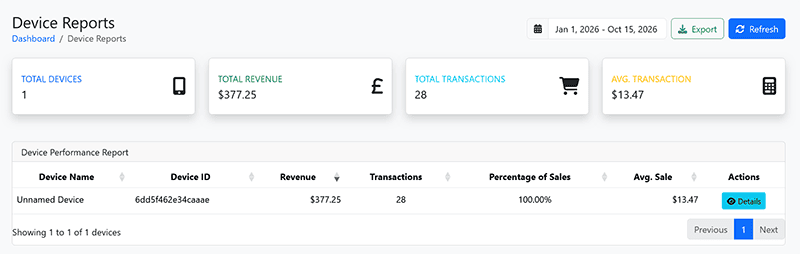
Pick the report you need from the table above. For example, choose Device Reports to see one till, or Employee Reports to see a staff member’s sales.
4. Choose your dates
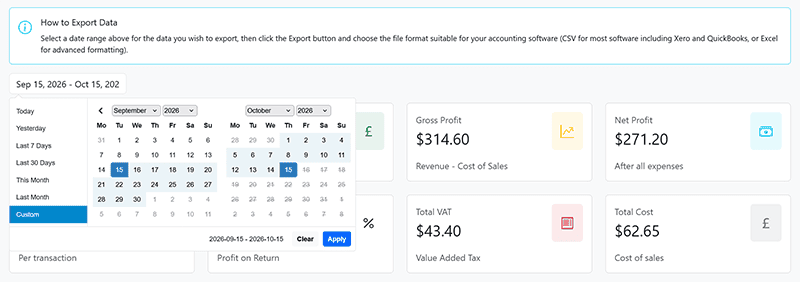
Set the date range, for example today, last week, a month or your VAT quarter. Each report has its own variation of date options to choose from. For example, the accounts reports has a date range picker.
5. Read the results
Check the figures on screen. In Device Reports, filter by till to see one till’s sales.
6. Export or email the report
Export the report to keep a copy or send it to your accountant. Reports can also be emailed or scheduled, so you get your figures without logging in.
Tip: For your VAT return, export Accounts Reports for the quarter. See Can I export data from POSable for my accountant?
Which report do I need?
| I want to… | Use |
|---|---|
| Check today’s takings before closing | Sales Reports or Device Reports for today |
| Get the end-of-day Z Report | Sales → select the date → day summary |
| Compare this year with last year | Sales Reports |
| Give my accountant VAT and net figures | Accounts Reports |
| See how much each staff member sold | Employee Reports |
| Check one till | Device Reports, filtered by till |
| Find my best and worst sellers | Item Reports and Categories Reports |
| Match card takings with my card provider’s payouts | Payment Type Reports |
| See staff tips (US, Gravity Payments) | Tips Reports |
| Show an inspector my fridge temperature and cleaning checks | Health & Safety Reports |
| Show a licensing officer our age checks | Age Verification Logs |
| See if my loyalty offers work | Loyalty Reports |
The Z Report and closing the till
The Z Report is your end-of-day report for each till. It shows totals for cash, card, refunds, net sales, deposits and till floats, and you can print it or email it.
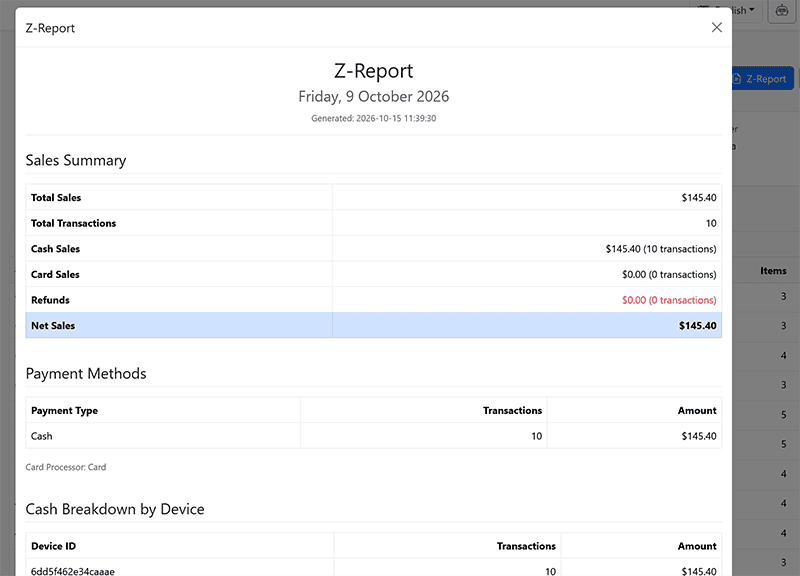
To find it: open Sales in the dashboard menu, select the date, and open the day summary. It isn’t in Advanced Reports or Accounts Reports.
- It runs from close to close. The Z Report period resets when the till is closed, not at midnight. If you trade past midnight, everything up to closing is on the same Z Report.
- Close the till at the end of each day. Logging out at the end of the day closes the till. If a till isn’t closed, its next Z Report will include more than one day.
- Sync before you close, so every sale is included. Tap the sync icon next to Log out on the till.
- No X Report. For figures during the day, use Sales Reports or Device Reports for today’s date.
Compliance logs
Health & Safety Reports. You set up Health & Safety checks in the dashboard, such as fridge and freezer temperatures, cleaning and hygiene, and staff complete them in the Shop Floor app. The results appear in Health & Safety Reports. On AI plans, Health & Safety records can be exported as CSV, Excel or PDF for audits. See How to use the POSable Shop Floor app.
Age Verification Logs. Every age check made on the till is logged by device. The log shows whether each check passed or failed, and whether it needed a supervisor’s approval. See Essential guide to age verification on the POSable till.
Troubleshooting
I can’t see Advanced Reports
- Reports are only visible to managers and assistant managers. Ask the account owner to check your access in Dashboard Users.
Today’s sales are missing
- Tills sync with the dashboard every 5 minutes. To send sales straight away, tap the sync icon next to Log out on the till.
- Check the till is online. An offline till keeps selling and sends its sales once it’s back online.
I can’t find the Z Report in Advanced Reports
- The Z Report isn’t in Advanced Reports. Open Sales, select the date and open the day summary.
My Z Report covers more than one day
- The till wasn’t closed at the end of the previous day. The Z Report runs from one close to the next, so close the till at the end of every trading day.
I can’t find one till’s sales
- Use Device Reports and filter by till. Give your tills clear names, such as Counter or Hatch 1, in App Devices so they’re easy to tell apart.
There’s nothing in Tips Reports
- Tips are taken on the card reader with Gravity Payments (US). If you use another card provider, there won’t be any tips to report.
A Health & Safety check is missing
- Check it was set up in the dashboard and that staff completed it in the Shop Floor app.
Still stuck?
- Email everythingis@posable.co.uk or call +44 7356 055601. Support is included in every plan.
Frequently asked questions
Where are reports in the POSable Backoffice?
Under Advanced Reports in the dashboard menu. It’s a dropdown with Sales, Accounts, Employee, Device, Item, Categories, Payment Type, Tips, Health & Safety and Loyalty Reports, plus Age Verification Logs and Deliveries Reports.
Can I see sales for just one till?
Yes. Open Advanced Reports, choose Device Reports and filter by till.
Can I see how much each staff member sold?
Yes. Employee Reports show sales by staff member.
Where is the Z Report in POSable, and does it reset at midnight?
It’s under Sales, not Advanced Reports: select the date and open the day summary. It doesn’t reset at midnight. It covers everything since the till was last closed, so close the till at the end of each trading day.
Is there an X Report in POSable?
No. To check takings during the day, open Advanced Reports and choose Sales Reports or Device Reports for today’s date.
Can I export or email POSable reports?
Yes. Reports can be exported, and they can also be emailed or scheduled. The Z Report can be printed or emailed.
Related Guides
- How to use AI.MEE reports in the POSable Backoffice. AI analysis and forecasts on AI plans.
- Can I export data from POSable for my accountant?. export formats, VAT and accounting software.
- How to manage devices in POSable. naming tills so Device Reports are clear.
- How to manage Dashboard Users and Permissions. who can access the dashboard.
- How to use the POSable Shop Floor app. where staff complete Health & Safety checks.
- Essential guide to age verification on the POSable till. the checks behind Age Verification Logs.
