
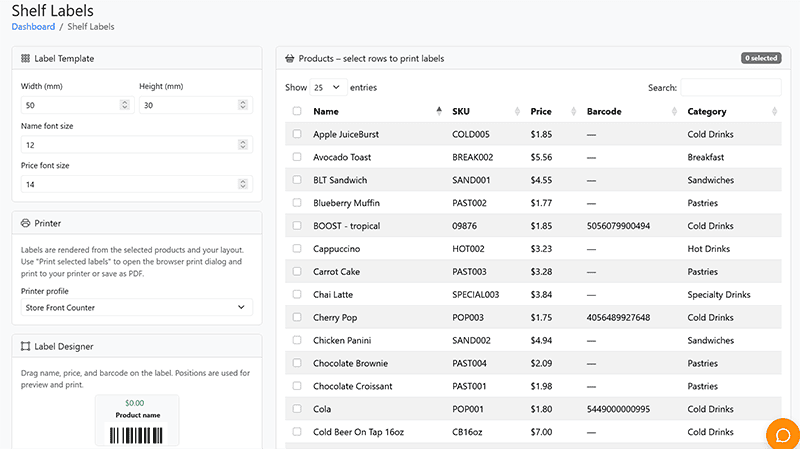
POSable’s shelf label system creates shelf-ready labels with your product name, price and barcode, straight from the Backoffice. You set your label size, font sizes, label type and layout once in the label settings. After that, you just select products and print. It works with most popular thermal label printers, including Brother and Dymo. This guide is for shop owners and staff who print price and barcode labels.
Why it matters
- Saves time. Print a label for every selected product in one go, which is ideal for new deliveries or a price change.
- Fewer pricing mistakes. Labels use the prices in your Backoffice.
- Scannable barcodes. Products without a manufacturer barcode can still be scanned at the till.
Label options at a glance
| Setting | Options | Tip |
|---|---|---|
| Label size | Width and height of your labels | We recommend 29 mm continuous labels, especially on printers with a built-in cutter |
| Font sizes | Product name and price font sizes | Make prices easy to read at a glance |
| Label type | Store Front Counter Label (name, price, barcode) or Back Office ZPL (name and barcode only) | Use Back Office labels for stockrooms, where prices aren’t needed |
| Layout | The label designer | e.g. barcode at the top, with the name and price below |
Step-by-step: set up your labels (one-off)
- In the Backoffice, open the shelf label system’s label settings.
- Enter the width and height of the labels loaded in your printer.
- Set the product name and price font sizes.
- Choose the label type: Store Front Counter Label or Back Office ZPL.
- Use the label designer to arrange the name, price and barcode, then save your settings.
Step-by-step: print labels
- Select products. Choose the products that need labels. Use search to find them quickly in a large catalogue.
- Select several at once to get one label per product, queued for printing in a batch.
- Preview. Press Print Selected Label to check the layout before you use up label stock.
- Print using your computer’s normal print dialogue, choosing your label printer.
Tip: After changing prices with Price Control on the Products page, print new labels for the products you changed. See How to manage products.
Troubleshooting
The layout looks wrong, or one label spreads across two
- The label size in your settings doesn’t match the labels in your printer. This is the most common cause. Correct the width and height in the label settings and preview again.
The barcode won’t scan
- Try a larger label size. 29 mm continuous labels give a clear, scannable barcode.
Still stuck?
- Email everythingis@posable.co.uk or call +44 7356 055601. Support is included in every plan.
Frequently asked questions
Which label printers work with POSable?
Most popular thermal label printers, including Brother and Dymo models.
What label size should I use?
We recommend 29 mm continuous labels, especially if your printer has a built-in cutter. They give a readable label and a barcode that scans well.
Can I print labels without prices?
Yes. Choose the Back Office ZPL label type, which shows only the product name and barcode.
Can I print labels for lots of products at once?
Yes. Select several products and POSable produces a label for each one, ready to print as a batch.
Why is my label printing across two labels?
The label size in your settings doesn’t match the labels loaded in your printer. Correct the width and height and preview again.
Related Guides
- How to manage products.
- What hardware do I need?.
- How to manage inventory and taxes.
- How to manage suppliers and stock ordering.
