How POSable POS Works: An Essential POS Guide
by POSable Support Team | January 3, 2026 12:25 pm
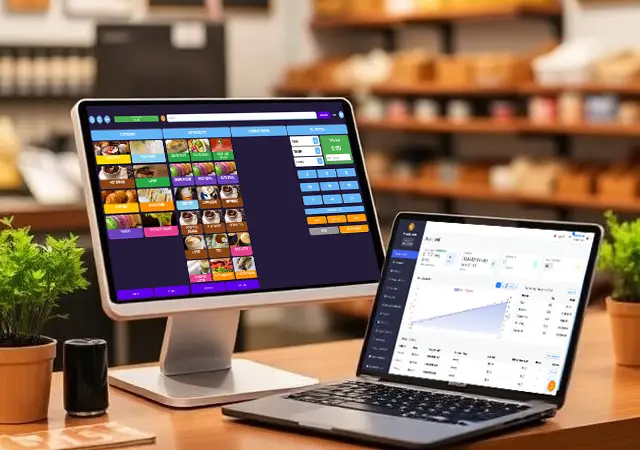
POSable is a cloud point of sale (POS) system for independent businesses. Your staff sell on a till app on an Android tablet or Windows tablet/pc. You manage products, stock, staff and reports in the cloud dashboard from any web browser. Everything syncs automatically between the two. If the internet drops, the till keeps selling offline and catches up when you’re back online.
POSable costs from £20 a month for up to 5 tills, with no contract and no POSable transaction fees.
The parts of POSable
| Part | Who uses it | What it does |
|---|---|---|
| Till app (Android or Windows) | Your till staff | Sales, payments, receipts, refunds, kitchen tickets and loyalty at the counter |
| Cloud dashboard | Owners and managers | Products, stock, staff, settings, reports, loyalty offers and exports |
| Card terminal | Your customers | Card and contactless payments through Dojo, Teya, myPOS or Gravity Payments (US) |
| Loyalty app | Your customers | Sign up by QR code, collect points and see offers |
| Shop Floor web app | Your staff, on phones or tablets | Stock counts, stock adjustments, deliveries and Health & Safety checks |
How POSable works
1. You set things up in the dashboard
Add your products, prices, VAT rates, staff, printers and card provider in the cloud dashboard. See What is a POS system?[1] for a feature overview.
2. Your tills sync automatically
Each till downloads what it needs from the dashboard, and changes you make in the dashboard sync to every till:
- categories and products, including variants
- settings and printer profiles
- VAT exemptions
- staff logins
3. Staff sell at the till
Staff sign in with their PIN, ring up items by scanning barcodes or tapping products, and take payment. The receipt prints, and food orders go to the kitchen printer.
4. Sales flow back to the dashboard
Each sale uploads straight after checkout. Your live sales, stock levels, reports and loyalty points update in the dashboard, so you can see how the day is going from anywhere.
5. If the internet drops, the till carries on
POSable detects the lost connection and switches to offline mode automatically, with no action needed from staff. Sales, refunds, till floats and staff sessions are stored on the device. When the connection comes back, they upload automatically. Please note that offline card sales only myPOS supports offline processing. Dojo, Teya, Gravity all require some form of connection either via WiFi or 4g.
A typical trading day
- Open up. Staff sign in with their PIN.
- Serve customers:
- scan or tap products, and use Hot Products for best-sellers
- scan a customer’s loyalty barcode to add points or apply an offer
- take cash, card or split payment
- print a receipt or skip it. You can reprint any of the last 5 orders later.
- Handle refunds (see below). Refunds need a manager’s authorisation.
- Keep an eye on the day in the dashboard’s live sales view.
- Close up. Review the Z report (end-of-day report) in the dashboard and email it if you need to. Your figures are ready for your accountant whenever you need them.
Payments
- Cash is recorded against each sale, and the cash drawer opens from the receipt printer.
- Card: the till sends the amount to your connected terminal and records the result automatically:
| Provider | Region | How the terminal connects |
|---|---|---|
| myPOS (GO 2) | UK and EU | USB on Android, or a COM port on Windows |
| Dojo (GO MAX) | UK and selected EU | Over the internet, assigned to each till in Device Management |
| Teya (Teya Pro) | UK | Over the internet, using your Teya ePOS details |
| Gravity Payments (PAX A920 Pro, Clover terminals) | United States | Assigned to each till by reader name in Device Management |
- Split payments: the customer pays part in cash, and the rest goes to the card terminal.
POSable doesn’t add transaction fees. See Are there any transaction fees?[2]
Refunds
- Find the sale. Scan the barcode on the customer’s receipt, or open it from recent orders.
- Choose what to refund. Select Refund all, or refund individual items in full or in part.
- A manager authorises the refund with their PIN.
- Card refunds go to the terminal automatically. The till sends the refund to your myPOS, Dojo, Teya or Gravity terminal, so there’s no need to log in to your provider’s website. Cash refunds are recorded against the original sale.
- A refund receipt prints.
Offline mode: what works and what doesn’t
| While offline you can… | Needs a connection |
|---|---|
| Sign in with staff PINs (up to 5 days after the till last synced) | Applying loyalty offers |
| Sell and take cash payments | Card payments on terminals that connect over the internet (Dojo, Teya) |
| Print and reprint receipts | Card refunds through your provider |
| Look up loyalty customers and redeem points | Changes made in the dashboard reaching the till |
| Record refunds and till floats |
Card payments offline: the myPOS GO 2 has its own 4G data SIM, so it can keep taking cards when your Wi‑Fi drops. Terminals that rely on your internet connection need it to work.
See Does POSable work offline?[3]
What you need
- A till device:
- an Android tablet running Android 10 or later, 10″ or larger, used in landscape
- or a Windows tablet/pc
- A receipt printer and optional barcode scanner, over USB or Bluetooth
- A card terminal from Dojo, Teya, myPOS or Gravity Payments, if you take card payments
- An internet connection for syncing (not needed to keep selling)
See What hardware do I need for POSable?[4]
Getting started
Most businesses are ready to trade in about 30 minutes:
- Sign up for a 15-day free trial. You’ll get your dashboard login and Tenant ID by email.
- Run Quick Setup in the dashboard: business details, currency and VAT, card provider, timezone and language.
- Add products by CSV import, from a sample template for your business type, or manually.
- Add staff and their PINs.
- Install the till app, enter your Tenant ID and sign in. The device registers itself automatically.
- Connect your printer and card terminal, then take a test payment before your first customer. New card terminals sometimes need a software update first.
Full guide: How long does it take to set up POSable?[5]
Troubleshooting
The app isn’t behaving as expected
- Close and reopen the POSable app, or restart the device.
- Check you’re on the latest version. Android updates come from Google Play.
- Check the device’s internet connection. The till keeps selling offline, but it needs a connection to sync.
A card payment won’t start
- Check the terminal is switched on, charged and connected: by USB for myPOS, or to the internet for Dojo and Teya.
- Check the right card provider is selected in API Settings → Payments, and that the terminal is assigned to this till in Device Management where needed.
I’ve forgotten my dashboard password
- Click Forgot password? on the dashboard sign-in page and follow the email link.
Still stuck?
- Search the help centre[6] or ask the POS BOT chatbot.
- Email everythingis@posable.co.uk[7] or call +44 7356 055601.
Best practice
- Test a card payment before opening on the first day, and after any terminal update.
- Give every staff member their own PIN. Sales and refunds are recorded against each person, and you’ll get accurate staff reports.
- Keep till devices online when you can, so sales sync promptly. After any time offline, reconnect before switching the device off at the end of the day.
- Don’t uninstall the app to fix a problem. Any sales that haven’t synced are stored on the device.
- Check your reports weekly to spot best-sellers, slow lines and stock to reorder.
- Export your reports regularly for your accountant and your own records.
Frequently asked questions
What is POSable?
POSable is a cloud POS system with Android and Windows till apps, a web dashboard, a customer loyalty app and a Shop Floor web app for stock.
How does POSable work?
You manage everything in the cloud dashboard, and it syncs to your tills. Staff sell on the till, and every sale flows back to the dashboard. If the internet drops, the till keeps selling and syncs later.
What size tablet do I need for POSable?
An Android tablet running Android 10 or later. Windows 10+ tablet/pc. A screen size of 10 inches or larger is recommended for ease of use.
Can I refund card payments from the POSable till?
Yes. Full and part refunds are sent to your myPOS, Dojo, Teya or Gravity terminal from the till, with manager authorisation.
Does POSable work without internet?
Yes. Sales, cash payments, receipts and refunds carry on offline and sync when you reconnect.
Related Guides
- What is a POS system?[8]
- setup[9]
- hardware[10]
- offline[11]
- fees[12]
- pricing[13]
- free trial or demo[14]
- business types[15]
- allergens[16]
- What is a POS system?: https://posable.co.uk/posable-docs/what-is-a-point-of-sale-pos-system/
- Are there any transaction fees?: https://posable.co.uk/posable-docs/are-there-any-transaction-fees/
- Does POSable work offline?: https://posable.co.uk/posable-docs/does-posable-work-offline/
- What hardware do I need for POSable?: https://posable.co.uk/posable-docs/what-hardware-do-i-need-for-posable/
- How long does it take to set up POSable?: https://posable.co.uk/posable-docs/how-long-does-it-take-to-setup-posable/
- help centre: https://posable.co.uk/help
- everythingis@posable.co.uk: mailto:everythingis@posable.co.uk
- What is a POS system?: https://posable.co.uk/posable-docs/what-is-a-point-of-sale-pos-system/
- setup: https://posable.co.uk/posable-docs/how-long-does-it-take-to-setup-posable/
- hardware: https://posable.co.uk/posable-docs/what-hardware-do-i-need-for-posable/
- offline: https://posable.co.uk/posable-docs/does-posable-work-offline/
- fees: https://posable.co.uk/posable-docs/are-there-any-transaction-fees/
- pricing: https://posable.co.uk/posable-docs/how-much-does-posable-cost/
- free trial or demo: https://posable.co.uk/posable-docs/is-there-a-free-trial-or-demo-for-posable/
- business types: https://posable.co.uk/posable-docs/what-type-of-business-is-posable-suitable-for/
- allergens: https://posable.co.uk/posable-docs/how-to-manage-food-allergens-with-posable-pos/
Source URL: https://posable.co.uk/posable-docs/what-is-posable-and-how-does-it-work/