Ultimate guide to streamlining stock ordering with POSable
by POSable Support Team | February 8, 2026 3:25 pm
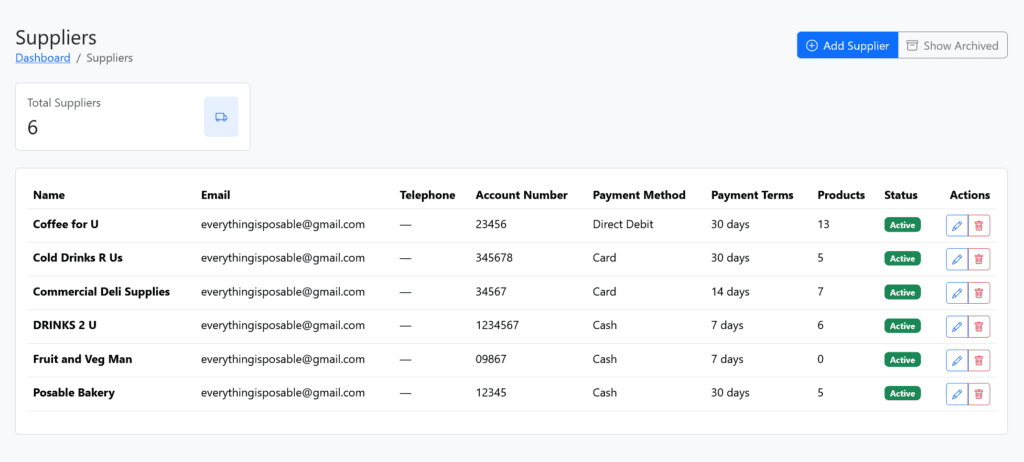
The POSable system keeps your suppliers and stock ordering in one place, streamlining how you manage purchasing. On the Suppliers page, you add each supplier with their contact details, your account number, how you pay, and their daily order cut-off time. The layout helps you stay organised and accurate when placing orders.
POSable can alert you 30 minutes before the cut-off, helping you avoid late orders. This functionality supports supplier management by coordinating timing, confirming that orders are placed promptly and reducing delays in replenishment.
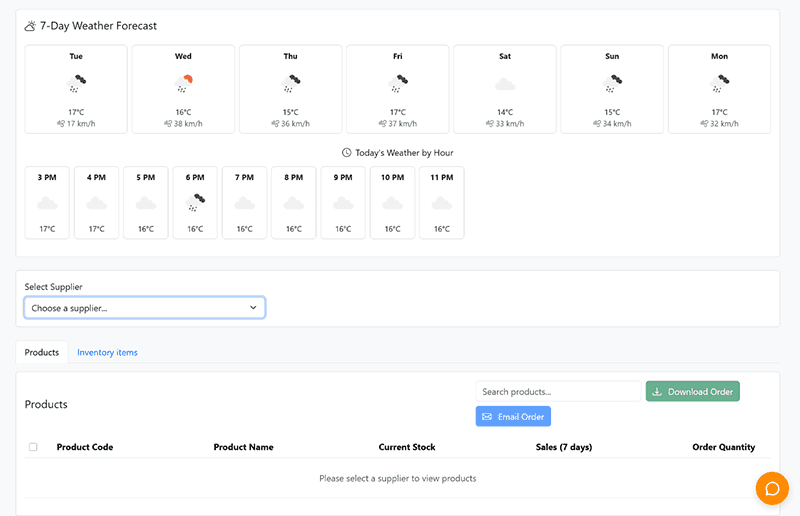
On the Supplier Ordering page, you choose a supplier, see how many of each of their products you’ve sold in the last seven days, build your order, and either email it straight to the supplier or download it. This guide is for owners and managers who place stock orders.
Why it matters
- Order on facts, not guesswork. You see the last 7 days’ sales for every product as you order.
- Never miss a cut-off. Get a reminder 30 minutes before each supplier’s deadline.
- Fewer mistakes. Orders carry your account number, so they’re processed against the right account.
- Less admin. Email an order in one click.
Supplier details at a glance
| Field | What to enter | Why |
|---|---|---|
| Name, address, telephone | The supplier’s contact details | Your reference |
| The address they take orders at | Enables the Email Order button | |
| Account number | Your account number with them | So orders are processed against your account |
| Payment method | How you pay, e.g. cash (cash on delivery) | A clear record of what’s needed when the delivery arrives |
| Order cut-off time | Their daily ordering deadline | POSable alerts you 30 minutes before, if notifications are ticked |
Step-by-step: add a supplier
- In the Backoffice, open Suppliers. You’ll see your suppliers with their details, status, and buttons to edit or archive.
- Click Add Supplier.
- Enter the supplier’s name, address, telephone and email.
- Add your account number and payment method.
- Set the order cut-off time and tick the notifications checkbox to get a reminder 30 minutes before.
- Save.
Note: Suppliers are archived, not deleted, because they’re linked to your products. Your history stays intact.
Link products to the supplier
Products appear on the ordering page for the supplier they’re linked to. Link each product (or inventory item) to its supplier and add the supplier’s product code.
Tip: Use your supplier’s code as the product SKU too. This makes reordering easier. See How to manage products.
Step-by-step: build and send an order
- Open Supplier Ordering.
- Check the weather forecast at the top. Weather affects what sells: a rainy day fills cafes with hot-drink customers, and a hot one boosts ice creams and frappes.
- Choose the supplier from the drop-down. Their products load into the table, with how many you’ve sold in the last 7 days.
- Enter the quantities you want to order.
- Send it:
- Email Order sends it straight to the supplier’s email address, or
- Download the order to upload to the supplier’s website or send it yourself.
When the delivery arrives
Staff can receive deliveries by scanning barcodes in the Shop Floor stock app or by pressing the barcode warehouse scan icon on the top bar of the app.
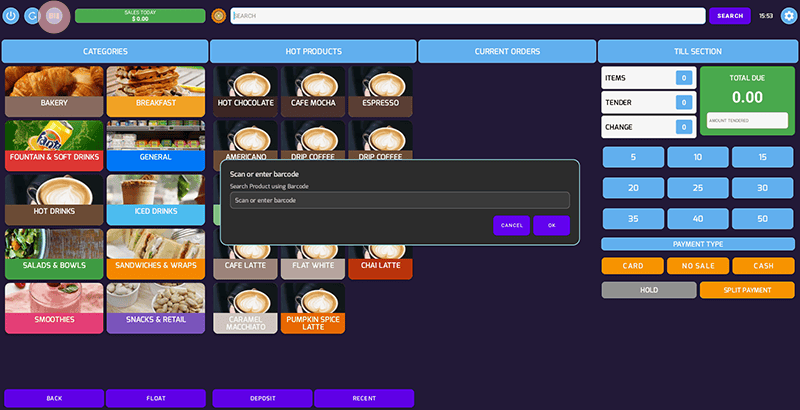
This icon launches a modal to either manually enter the master barcode for the product or to barcode scan the barcode. Staff can then verify the delivery, record any damages or returns and the stock amount received.
Stock is automatically synced to the POSable backoffice and updated on the APP. Real time stock updates enables efficiency and a stronger sales routine.
Troubleshooting
The Email Order button isn’t working
- Check the supplier has an email address saved on the Suppliers page.
A product isn’t listed for a supplier
- The product isn’t linked to that supplier yet. Edit the product and add the supplier.
I didn’t get a cut-off reminder
- Check the cut-off time is set and the notifications checkbox is ticked for that supplier.
Still stuck?
- Email everythingis@posable.co.uk[1] or call +44 7356 055601. Support is included in every plan.
Frequently asked questions
How do I add a supplier in POSable?
In supplier management, open Suppliers, then click Add Supplier.
Enter their contact details, email, your account number, payment method and order cut-off time, then save.
Can POSable remind me of a supplier’s order cut-off?
Yes. Set the cut-off time on the supplier and tick the notifications checkbox. POSable alerts you 30 minutes before.
Can I email orders to suppliers from POSable?
Yes. If the supplier has an email address saved, press Email Order on the Supplier Ordering page. You can also download the order instead.
How do I know how much to order?
The Supplier Ordering page shows how many of each product you’ve sold in the last 7 days, plus a weather forecast to help you plan.
Can I delete a supplier?
No. Suppliers are archived instead, because they’re linked to your products, so your history stays intact.
Related Guides
- How to manage inventory and taxes[2]. Reason: receiving deliveries, low-stock suggestions and warehouse case barcodes.
- How to manage products[3]. Reason: SKUs and linking products to suppliers.
- How to set up business details, tax and core settings (API Settings)[4]. Reason: stock alerts by email or Telegram.
- How to create shelf labels[5]. Reason: label new stock when it arrives.
- everythingis@posable.co.uk: mailto:everythingis@posable.co.uk
- How to manage inventory and taxes: https://posable.co.uk/posable-docs/can-i-manage-inventory-and-taxes-with-posable/
- How to manage products: https://posable.co.uk/posable-docs/product-management-in-the-posable-backoffice/
- How to set up business details, tax and core settings (API Settings): https://posable.co.uk/posable-docs/first-time-setup-business-details-tax-core-settings/
- How to create shelf labels: https://posable.co.uk/posable-docs/how-to-create-shelf-labels-with-posables-label-system/

Source URL: https://posable.co.uk/posable-docs/how-to-streamline-stock-ordering-with-posables-supplier-management/