How to master sales on the POS till
by POSable Support Team | October 14, 2026 3:26 pm
To take a sale on POSable, sign in with your 6-digit PIN, add products by tapping them or scanning their barcodes, and check the current order. Then press Card, Cash or Split Payment. When the payment succeeds, the till shows a success message with a Print Receipt button, so you only print a receipt if the customer wants one. This guide is for till staff and anyone training them.
Important:
- Staff can’t change prices, and there are no manual discounts on the till. Prices come from the dashboard. The only offers at the till are loyalty offers, applied by scanning the customer’s loyalty barcode.
- Each till can hold one order at a time.
Why it matters
- Fast checkout. Scan, tap or use Hot Products to build the order in seconds.
- Fewer mistakes. Prices are fixed from the dashboard, and every sale is recorded against the staff member who signed in.
- Less paper. No receipt prints unless the customer asks, and you can reprint any recent sale.
- Safer food service. Allergen information and kitchen tickets come straight from the order.
The till at a glance
| Task | How |
|---|---|
| Add a product | Tap its category and product, use Hot Products, search, or scan its barcode |
| Add another of the same item | Scan it again, or press + on the product in the current order |
| Reduce the quantity | Press − on the product in the current order |
| Remove a product | Press the trash can icon on the product |
| Park the order | Press HOLD. It turns grey and reads HELD. Press it again to bring the order back (one held order per till) |
| Take payment | Card, Cash or Split Payment |
| Print a receipt | Press Print Receipt on the success message |
| Reprint a receipt | Recent Orders → Print Receipt |
| Open the cash drawer without a sale | Press NO SALE |
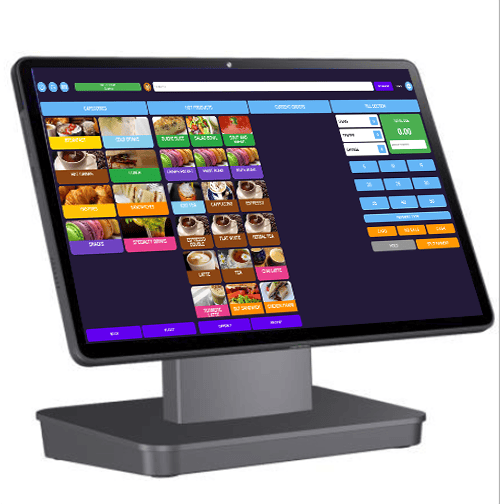
Step-by-step: take a sale
1. Sign in
Sign in to the till with your 6-digit PIN. Every sale is recorded against you.
2. Add products to the order
- Tap a category, then the product. Categories and products are colour-coded to help you find them.
- Hot Products puts your best-sellers at the front of the screen.
- Scan the product’s barcode, or use the search bar.
If a product has options, such as milk type or size, the till asks you to choose them when you add it.
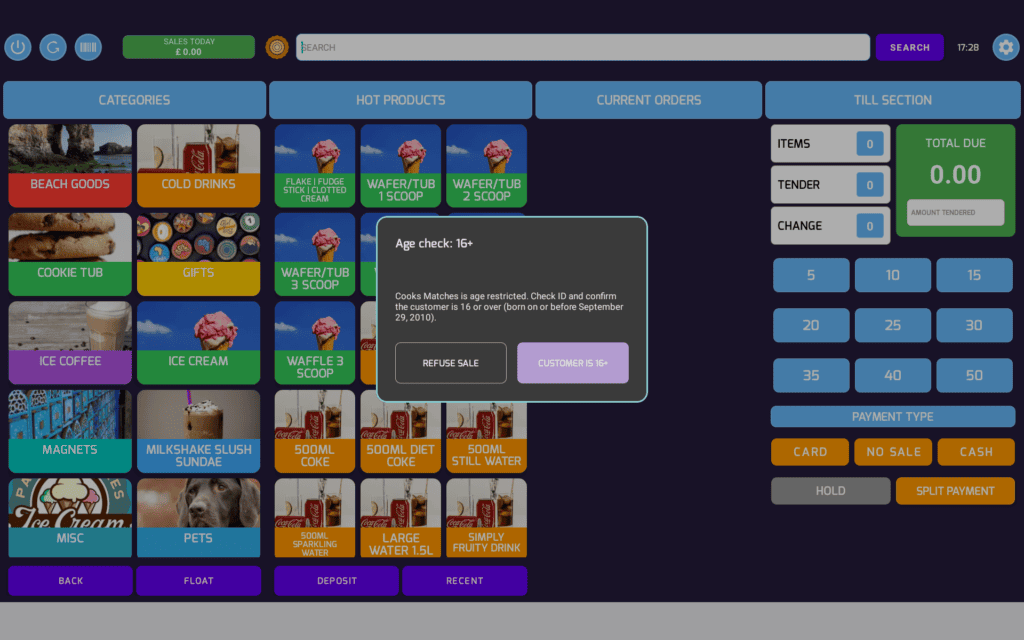
Age-restricted products: if age verification is turned on for the product, the till shows an age verification check before the product is added to the order. Check the customer’s ID before you confirm it.
Food products: a coloured i button appears on the order line. Tap it to see the product’s Allergen Information if a customer asks.
3. Check the current order
- More of the same item: scan it again, or press + on the product in the current order panel.
- Fewer: press −.
- Remove it: press the trash can icon.
Prices can’t be changed on the till. If a price is wrong, a manager needs to update the product in the dashboard.
4. Apply loyalty (optional)
If the customer is a loyalty member, scan the barcode in their loyalty app. You can scan it at any point before payment, but not after the sale is paid, and there’s no customer search. The till shows their name, points balance, tier and current offers. Depending on the offer, points can be redeemed as a discount or a payment, alongside cash or card. Applying a loyalty offer needs an internet connection. See How to use loyalty at the POSable till.
5. Take payment
| Button | What happens |
|---|---|
| Cash | Use the quick buttons or type the amount handed over under TOTAL DUE. The till works out the change, and the cash drawer opens if it’s connected to the receipt printer. |
| Card | The amount is sent to your card terminal. Follow the terminal and any prompts on the till. |
| Split Payment | Enter the cash amount first. The remaining balance is sent to the card terminal. |
For your card terminal, see the guide for your provider: myPOS GO 2[1], Dojo GO MAX[2], Teya Pro[3] or Gravity Payments (US)[4].
6. Print a receipt (if the customer wants one)
When the payment succeeds, a message confirms the sale with a Print Receipt button. No receipt prints unless you press it. All receipts, for sales and refunds, are printed on request only. If cash was taken, the change given appears on the receipt.
If the sale includes items that need preparing, the kitchen ticket prints automatically once the sale is paid.
Tip: Turn on Receipt Auto Dismiss to close the success message automatically, and enter the number of seconds to wait. We recommend 10. You’ll find it in API Settings, or on the till: press the cog wheel icon at the top right to open the settings window.
Hold an order
- Press HOLD to park the current order, for example if a customer has forgotten something.
- The button turns grey and reads HELD, and you can serve the next customer.
- When you’re ready, press HELD again. The order goes back into the current order panel.
Each till can hold one order at a time.
Reprint a receipt
- Press Recent Orders. It lists today’s sales, with the last 5 shown first. Use the page controls to see older sales, or press the calendar button to pick a date and see that day’s sales (also in pages).
- Find the sale and press Print Receipt.
Note: Email receipts aren’t available. Receipts are printed only.
Open the cash drawer without a sale
Press NO SALE to open the cash drawer, for example to give change. No PIN is needed, and it isn’t logged.
If the internet drops
The till keeps working offline: you can keep taking cash sales and printing receipts, and everything syncs when you’re back online. Card payments depend on your provider. myPOS can keep taking cards on its own data SIM, but Dojo, Teya and Gravity need the till to be online.
Troubleshooting
The cash drawer doesn’t open
- The drawer must be connected to the receipt printer by its RJ11 cable, and the printer must be on. It opens for cash sales, the cash part of a split payment and NO SALE, not for card sales.
A product scans but doesn’t appear
- Check the barcode is saved on the product in the dashboard, then tap the sync icon next to Log out on the till.
The price is wrong
- Staff can’t change prices on the till. Ask a manager to correct the product in the dashboard, then tap the sync icon next to Log out.
The card payment doesn’t reach the terminal
- Check the terminal is on and connected, and see your provider’s guide.
Still stuck?
- Email everythingis@posable.co.uk[5] or call +44 7356 055601. Support is included in every plan.
Frequently asked questions
Can staff give a discount on the POSable till?
No. There are no manual discounts on the till, and staff can’t change prices. The only offers at the till are loyalty offers, applied by scanning the customer’s loyalty barcode.
How do I change the quantity of an item?
Scan the product again or press + on it in the current order panel to add more, press − to reduce the quantity, or press the trash can icon to remove it.
Does POSable print a receipt for every sale?
No. After a successful payment, the till shows a Print Receipt button, and a receipt only prints if you press it. Email receipts aren’t available.
How do I reprint a receipt?
Press Recent Orders, find the sale and press Print Receipt. Today’s last 5 sales show first, and you can page back or pick another date with the calendar button.
How do I hold an order on the till?
Press HOLD. The button turns grey and reads HELD. Press it again to return the order to the current order panel. Each till can hold one order at a time.
How do I open the cash drawer without a sale?
Press NO SALE. No PIN is needed. The drawer must be connected to the receipt printer.
Related Guides
- Cash and card payments[6]. more on cash, card and split payments.
- How to manage food allergens[7]. the allergen i button and Allergen Information.
- Can POSable do kitchen printing?[8]. kitchen tickets for food orders.
- How to use loyalty at the POSable till[9]. scanning and redeeming points at the till.
- POSable till settings, Sync and staff sign-in[10]. the settings window, Sync and Log out.
- Does POSable work offline?[11]. what you can do when the internet drops.
- How to use age verification on the POSable till[12]. the ID check that appears before an age-restricted product is added.
- myPOS GO 2: https://posable.co.uk/posable-docs/card-sales-mypos-go-2-on-posable-point-of-sale/
- Dojo GO MAX: https://posable.co.uk/posable-docs/how-to-set-up-the-dojo-go-max-for-card-payments-with-posable-an-essential-guide/
- Teya Pro: https://posable.co.uk/posable-docs/how-to-set-up-teya-pro-for-card-payments/
- Gravity Payments (US): https://posable.co.uk/posable-docs/easy-setup-of-gravity-payments-for-posable-card-payments/
- everythingis@posable.co.uk: mailto:everythingis@posable.co.uk
- Cash and card payments: https://posable.co.uk/posable-docs/cash-and-card-payments-with-posable-point-of-sale/
- How to manage food allergens: https://posable.co.uk/posable-docs/how-to-manage-food-allergens-with-posable-pos/
- Can POSable do kitchen printing?: https://posable.co.uk/posable-docs/does-posable-support-table-management-or-kitchen-printing/
- How to use loyalty at the POSable till: https://posable.co.uk/posable-docs/how-to-maximise-loyalty-at-the-till-with-scan-and-redeem/
- POSable till settings, Sync and staff sign-in: https://posable.co.uk/posable-docs/essential-guide-to-pos-till-settings-sync-and-staff-sign-in/
- Does POSable work offline?: https://posable.co.uk/posable-docs/does-posable-work-offline/
- How to use age verification on the POSable till: https://posable.co.uk/posable-docs/essential-guide-to-age-verification-on-the-posable-till/

Source URL: https://posable.co.uk/posable-docs/how-to-master-sales-on-the-pos-till/