Essential Guide to Age Verification on the POSable Till
by POSable Support Team | October 13, 2026 10:57 am
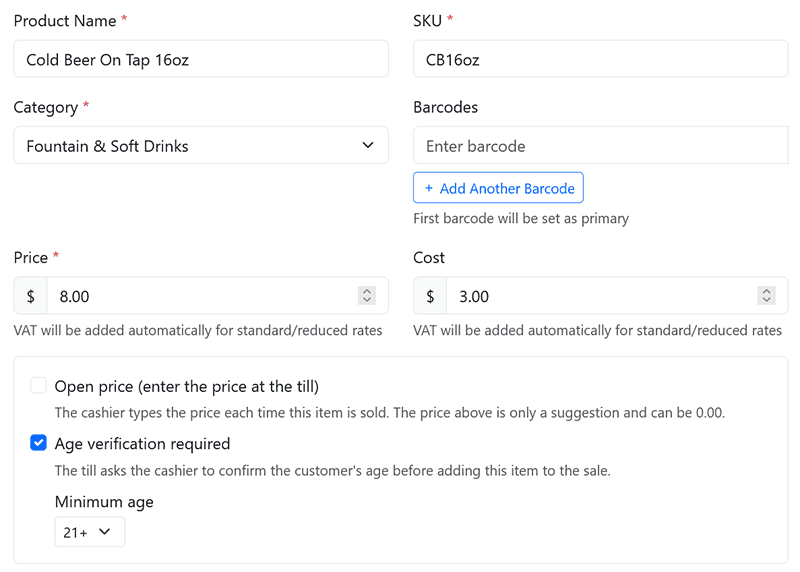
To sell age-restricted products such as alcohol, tobacco, vapes or knives with POSable, turn on age verification for each product in the Backoffice Products page and choose its minimum age: 16+, 18+, 21+ or 25+. When staff add that product on the till, an age verification check appears before the product is added to the current order. The staff member asks for ID, checks it, and then confirms or declines the check. If it’s declined, the product isn’t added and can’t be sold. This guide is for owners and managers setting up products, and for till staff.
Important:
- POSable doesn’t check ID for you. The till only shows the age verification check. It’s up to the staff member to ask for ID and check it. POSable doesn’t record which type of ID was shown.
- There’s no separate Challenge 21 or Challenge 25 setting. Set a higher minimum age on the product instead, for example 25+ for alcohol under a Challenge 25 policy.
- The minimum age is set per product. Products without age verification turned on are never checked.
Why it matters
- Nothing slips through. The check appears before an age-restricted product goes into the order, so staff can’t forget to ask.
- Challenge 25 made simple. Set the product to 25+. There’s no separate policy setting to manage.
- Protection for younger staff. If the staff member signed in is under the product’s age limit, a supervisor must authorise the sale with their PIN.
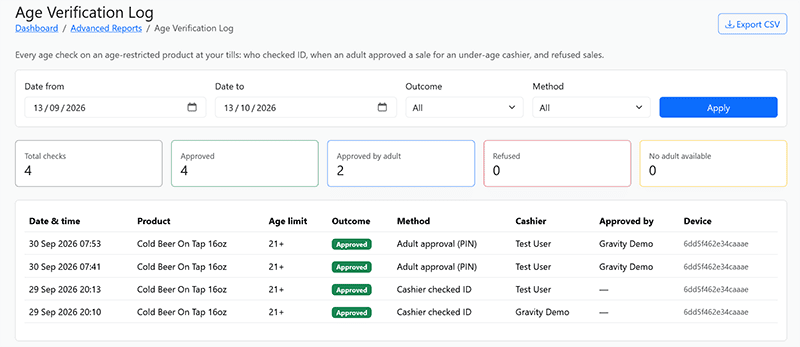
- A record of every check. POSable logs every check: whether it passed or failed, whether it needed approval, who approved it, and the device it was made on.
Age verification at a glance
| Question | Answer |
|---|---|
| Where do I turn it on? | Backoffice → Products, when you add or edit a product |
| Which ages can I choose? | 16+, 18+, 21+ or 25+ only |
| What do staff see? | An age verification check before the product is added to the current order |
| Who checks the ID? | The staff member. POSable doesn’t record which ID was shown |
| Challenge 21 / Challenge 25? | Set the product to 21+ or 25+ |
| Staff member under the age limit? | A supervisor authorises the sale with their PIN |
| Check declined? | The product isn’t added to the order and can’t be sold |
| Is it logged? | Yes: passed or failed, whether approval was needed, who approved it, and the device |
| Does it work offline? | Yes |
| Refunds? | No age check. It was already made at the sale |
Which age to choose
Choose the age your local law or your own policy needs. As a guide:
| Situation | Set the product to |
|---|---|
| UK alcohol, tobacco and vapes (legal age 18) | 18+ |
| UK retailer following Challenge 21 | 21+ |
| UK retailer following Challenge 25 | 25+ |
| US alcohol and tobacco (legal age 21) | 21+ |
| Products with a legal age of 16 where you trade | 16+ |
Rules differ between countries and products, especially across the EU, so check the legal age for each product where you trade, and any conditions on your licence.
Note: With a Challenge 21 or 25 setting, the higher age also applies to your staff. For example, a 22-year-old staff member selling a 25+ product will need a supervisor’s PIN.
Step-by-step: turn on age verification for a product
You need Manager or Administrator access to the Backoffice to add or edit products.
1. Open the product
Log in to the Backoffice and open Products. Click Add Product for a new product, or Edit on an existing one.
2. Turn on age verification
Tick the age verification checkbox. A dropdown appears.
3. Choose the minimum age
Choose 16+, 18+, 21+ or 25+ from the dropdown. These are the only options.
4. Save and sync
Click Save. The change reaches your tills at the next automatic sync, which runs every 5 minutes. To get it straight away, tap the sync icon next to Log out on the till.
Step-by-step: sell an age-restricted product on the till
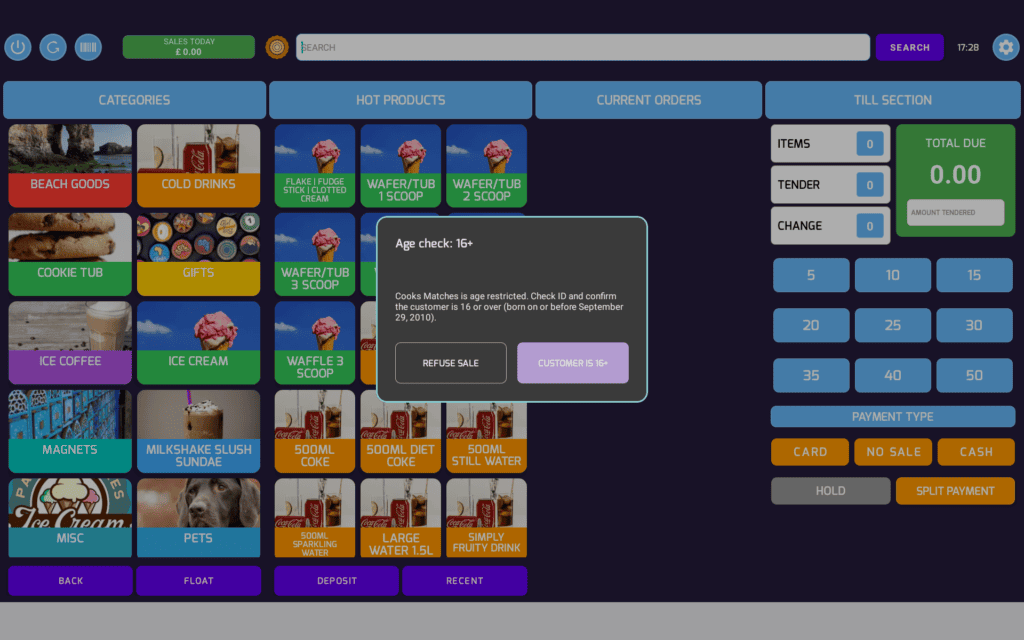
1. Add the product
Add the product to the order as you normally would. Before it goes into the current order, the till shows the age verification check.
2. Ask for ID and check it
Ask the customer for ID and check the photo, the date of birth, and that they’re at least the age shown for the product. Which ID you accept depends on your local law and licence. In the UK, that’s usually a passport, a photocard driving licence or a PASS-hologram proof-of-age card.
3. Confirm or decline the check
- The customer is old enough: confirm the check. The product is added to the current order.
- The customer is under age, or can’t show valid ID: decline the check. The product isn’t added and can’t be sold. You can carry on with the rest of the order.
4. Get a supervisor’s PIN if you’re under the age limit
Each staff member’s date of birth is saved on their App User profile. If you’re under the product’s age limit, a supervisor must authorise the sale by entering their 6-digit PIN.
5. Take payment
Take payment as normal with Card, Cash or Split Payment.
The age verification log
POSable logs every age verification check, recording:
- whether the check passed or failed
- whether it needed a supervisor’s approval, and who approved it
- the device it was made on
If the internet drops
Age verification works offline. The till keeps showing the check, and staff confirm or decline it in the same way.
Refunds
Refunds don’t need an age check, because the check was already made when the product was sold. Refunds still need a management PIN, as usual.
Troubleshooting
The age check doesn’t appear for a product
- Check age verification is ticked on the product in Products, with a minimum age chosen, and that you clicked Save.
- Wait for the automatic sync (every 5 minutes), or tap the sync icon next to Log out on the till.
The wrong age shows for a product
- Ask a manager to edit the product, choose the right age from the dropdown and click Save. Then sync the till.
I’m asked for a supervisor’s PIN
- The date of birth on your App User profile shows you’re under the product’s age limit. Ask a supervisor to enter their PIN.
- If your date of birth is wrong, ask a manager to correct it in App Users.
The customer has no ID
- Decline the check. The product can’t be sold, but you can finish the rest of the order.
Still stuck?
- Email everythingis@posable.co.uk[1] or call +44 7356 055601. Support is included in every plan.
Frequently asked questions
Does POSable check the customer’s ID?
No. The till shows an age verification check before the product is added to the order, but the staff member must ask for ID and check it. POSable doesn’t record which type of ID was shown.
Does POSable have a Challenge 25 setting?
No, there’s no separate setting. Set the product’s minimum age to 25+ for Challenge 25, or 21+ for Challenge 21. The options are 16+, 18+, 21+ and 25+.
What happens if the staff member is under the age limit?
A supervisor must authorise the sale with their PIN. POSable compares the date of birth on the staff member’s App User profile with the product’s minimum age.
What happens if I decline the age check?
The product isn’t added to the order and can’t be sold. You can carry on with the rest of the order.
Does age verification work offline?
Yes. The till shows the age verification check and logs it whether or not it’s online.
Do refunds need an age check?
No. The check was already made when the product was sold. Refunds still need a management PIN.
Related Guides
- How to manage products in the POSable Backoffice[2]. where age verification is set on each product.
- How to add app users[3]. staff profiles, dates of birth and PINs.
- How to take a sale on the POSable till[4]. adding products and taking payment.
- Cash and card payments: refunds[5]. refunds don’t need an age check.
- POSable till settings, Sync and staff sign-in[6]. the sync icon and signing in with your PIN.
- Does POSable work offline?[7]. what keeps working when the internet drops.
- everythingis@posable.co.uk: mailto:everythingis@posable.co.uk
- How to manage products in the POSable Backoffice: https://posable.co.uk/posable-docs/product-management-in-the-posable-backoffice/
- How to add app users: https://posable.co.uk/posable-docs/how-to-add-new-app-users-to-posable/
- How to take a sale on the POSable till: https://posable.co.uk/posable-docs/how-to-master-sales-on-the-pos-till/
- Cash and card payments: refunds: https://posable.co.uk/posable-docs/cash-and-card-payments-with-posable-point-of-sale/
- POSable till settings, Sync and staff sign-in: https://posable.co.uk/posable-docs/essential-guide-to-pos-till-settings-sync-and-staff-sign-in/
- Does POSable work offline?: https://posable.co.uk/posable-docs/does-posable-work-offline/

Source URL: https://posable.co.uk/posable-docs/essential-guide-to-age-verification-on-the-posable-till/