How to use AI.MEE reports in the POSable Backoffice
by POSable Support Team | October 15, 2026 11:22 am
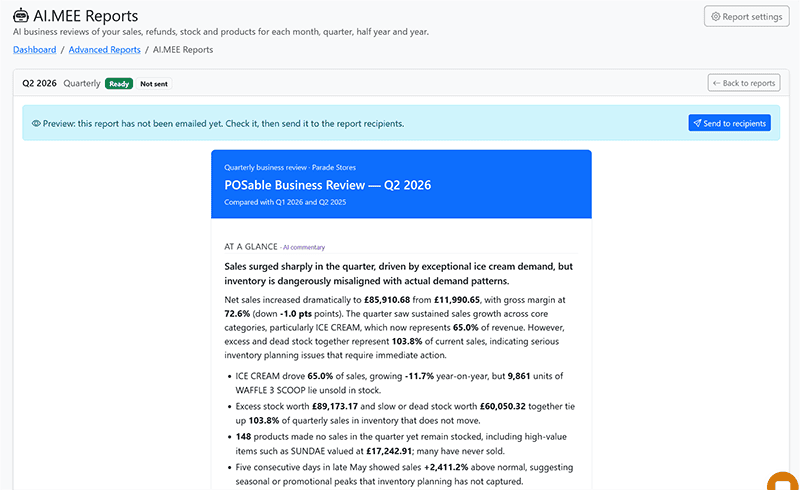
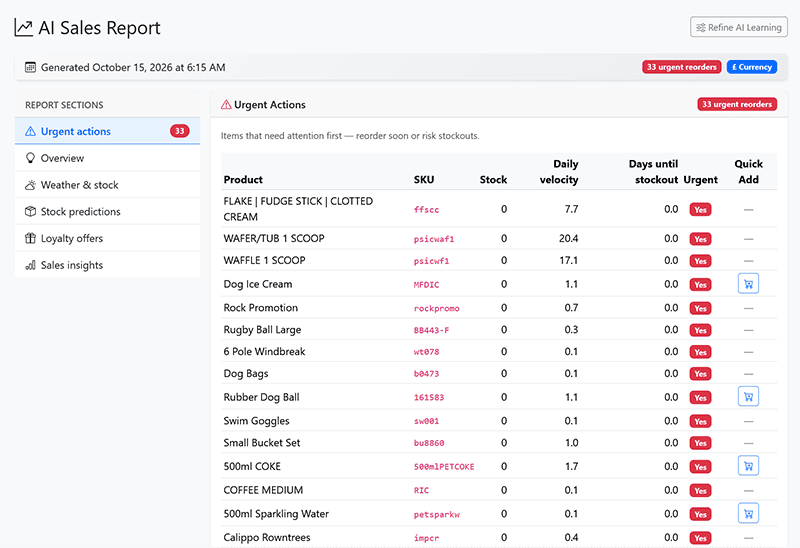
AI.MEE is POSable’s AI assistant for business reports, included on AI plans. Open Advanced Reports → AI.MEE REPORTS in the dashboard, choose a Monthly, Quarterly, 6-monthly or Yearly report, and pick its dates. AI.MEE analyses your sales, products, payments and staff, then gives you forecasts, recommended actions and a summary. You also get a daily report at the top of the dashboard, next to your profile. You can create and view reports at any time, email them and export them. This guide is for owners, managers and assistant managers on an AI plan.
Important:
- AI.MEE is on AI plans only. Core plans don’t include it.
- AI.MEE is reports only. You can’t chat with it or ask it questions.
- Recommendations and forecasts are guidance. Check them against what you know about your business before you act.
Why it matters
- The analysis is done for you. Instead of comparing reports yourself, you get the trends and a plain summary in one place.
- Spot dead stock. Dead products data shows the products that aren’t selling, so you can discount, reorder less or drop them.
- Plan ahead. Forecasts are included in the reports, to help you plan stock.
- Ready-made loyalty offers. The daily report suggests loyalty offers that you can edit and publish.
- Nothing extra to pay. AI is included in AI plans, with no extra credits to buy.
AI.MEE at a glance
| Question | Answer |
|---|---|
| Which plans? | AI plans only |
| Where is it? | Dashboard → Advanced Reports → AI.MEE REPORTS |
| Daily report | In the dashboard header, next to your profile. It suggests loyalty offers |
| Report periods | Monthly, Quarterly, 6-monthly and Yearly, plus the daily report |
| How do I choose the period? | With the date select |
| When can I create one? | At any time |
| Can I email it? | Yes, with the action button |
| Can I export it? | Yes |
| Forecasts? | Yes, inside the reports |
| Can I ask it questions? | No. AI.MEE is reports only |
What’s in an AI.MEE report
| Section | What it covers |
|---|---|
| Sales data | Your sales for the period |
| Products data | How your products performed |
| Dead products data | Products that aren’t selling |
| Sales Trends | How sales are changing over time |
| Payments | How customers paid |
| Staff | Staff performance |
| Recommended actions | What AI.MEE suggests you do next |
| Summary | The key points in plain language |
Step-by-step: create an AI.MEE report
1. Log in to the dashboard
Go to https://dashboard.posable.co.uk[1], or click Login on posable.co.uk.
2. Open AI.MEE REPORTS
Click Advanced Reports, then choose AI.MEE REPORTS from the dropdown.
3. Choose the period
Choose Monthly, Quarterly, 6-monthly or Yearly, then use the date select to pick which month, quarter, half-year or year you want.
4. Create the report
Create the report. You can create and view reports at any time.
5. Read the report
Work through the sections: Sales data, Products data, Dead products data, Sales Trends, Payments, Staff, Recommended actions and Summary. Forecasts are included in the report.
6. Email or export it
To email the report, click the action button. You can also export it, for example to share it with a business partner or your accountant.
Tip: Start with the Summary and Recommended actions, then use the other sections to see the detail behind them.
The daily report
Your daily AI.MEE report is in the dashboard header, next to your profile, so it’s the first thing you see when you log in. It looks at your sales, the weather forecast and upcoming holidays, and suggests loyalty offers. You can edit an offer before you publish it. See Does POSable have customer loyalty features?[2]
Using AI.MEE well
- Monthly: check Dead products data and Recommended actions, and adjust your next supplier order.
- Quarterly: compare Sales Trends with the quarter before, and review staffing with the Staff section.
- 6-monthly and yearly: use the reports for bigger decisions, such as your product range, opening hours or pricing.
AI.MEE works alongside your standard reports. For exact figures for your accountant, such as VAT and net sales, use Accounts Reports. See How to use Advanced Reports[3].
Troubleshooting
I can’t see AI.MEE REPORTS
- AI.MEE is on AI plans only. Check your plan, or contact us to upgrade.
- Reports are visible to managers and assistant managers. Ask the account owner to check your access.
I can’t see the daily report
- Look in the dashboard header, next to your profile. Check you’re on an AI plan.
The report is missing recent sales
- Tills send sales to the dashboard when they sync, automatically every 5 minutes. Check your tills are online, or tap the sync icon next to Log out on the till.
The emailed report hasn’t arrived
- Check your junk or spam folder, then try the action button again.
I want to ask AI.MEE a question
- You can’t. AI.MEE is reports only. For specific figures, use the reports under Advanced Reports, or contact our support team.
Still stuck?
- Email everythingis@posable.co.uk[4] or call +44 7356 055601[5]. Support is included in every plan.
Frequently asked questions
Which POSable plans include AI.MEE?
AI.MEE is included on POSable AI plans only. Core plans don’t include it.
What AI.MEE report periods are there?
Monthly, quarterly, 6-monthly and yearly reports, which you choose with the date select, plus a daily report in the dashboard header.
Can I ask AI.MEE questions?
No. AI.MEE is reports only. You can’t chat with it or ask it questions.
Does AI.MEE include forecasts?
Yes. Forecasts appear within the AI.MEE reports.
Can I email or export an AI.MEE report?
Yes. Click the action button to email a report, or export it. You can create and view reports at any time.
Do AI.MEE reports cost extra?
No. AI is included in POSable AI plans, with no extra credits to buy.
Related Guides
- How to use Advanced Reports in the POSable Backoffice[6]. every standard report, the Z Report and exports.
- How much does POSable cost?[7]. Core and AI plans compared.
- Does POSable have customer loyalty features?[8]. AI loyalty offer suggestions.
- Ultimate guide to streamlining stock ordering with POSable[9]. turning recommendations into supplier orders.
- Can I export data from POSable for my accountant?[10]. exact figures for VAT and bookkeeping.
- How to log in to the POSable dashboard[11]. getting into the dashboard.
- https://dashboard.posable.co.uk: https://dashboard.posable.co.uk
- Does POSable have customer loyalty features?: https://posable.co.uk/posable-docs/does-posable-have-customer-loyalty-features/
- How to use Advanced Reports: https://posable.co.uk/posable-docs/advanced-reports-in-the-posable-backoffice/
- everythingis@posable.co.uk: mailto:everythingis@posable.co.uk
- +44 7356 055601: tel:+447356055601
- How to use Advanced Reports in the POSable Backoffice: https://posable.co.uk/posable-docs/advanced-reports-in-the-posable-backoffice/
- How much does POSable cost?: https://posable.co.uk/posable-docs/how-much-does-posable-cost/
- Does POSable have customer loyalty features?: https://posable.co.uk/posable-docs/does-posable-have-customer-loyalty-features/
- Ultimate guide to streamlining stock ordering with POSable: https://posable.co.uk/posable-docs/how-to-streamline-stock-ordering-with-posables-supplier-management/
- Can I export data from POSable for my accountant?: https://posable.co.uk/posable-docs/can-i-export-data-from-posable-for-my-accountant/
- How to log in to the POSable dashboard: https://posable.co.uk/posable-docs/how-to-login-to-the-posable-admin-dashboard/

Source URL: https://posable.co.uk/posable-docs/ai-mee-reports-in-the-posable-backoffice/